
Creating and Saving Blocks
The Blocks feature allows you to save sections of your workouts that can be reused in other workouts without having to create everything from scratch each time.
With Blocks, you can build a library of pre-designed warm-up, strength, power, core, speed, agility, plyometrics, conditioning, cardio blocks to use in your programming.
You can build your Blocks Library by saving blocks of your existing workouts which we'll demonstrate in this article. Once they're built, they can quickly be added to workouts as shown in this article.
Saving a Block from an Existing Workout
To save a block from an existing workout, follow these steps:
- Open one of your workout templates
- Click on the Block you want to save to open it
- Click the Save button as shown below
- Give the Block a name (this is just for you to identify it and won't be seen by your athletes)
- Click Save block to finish
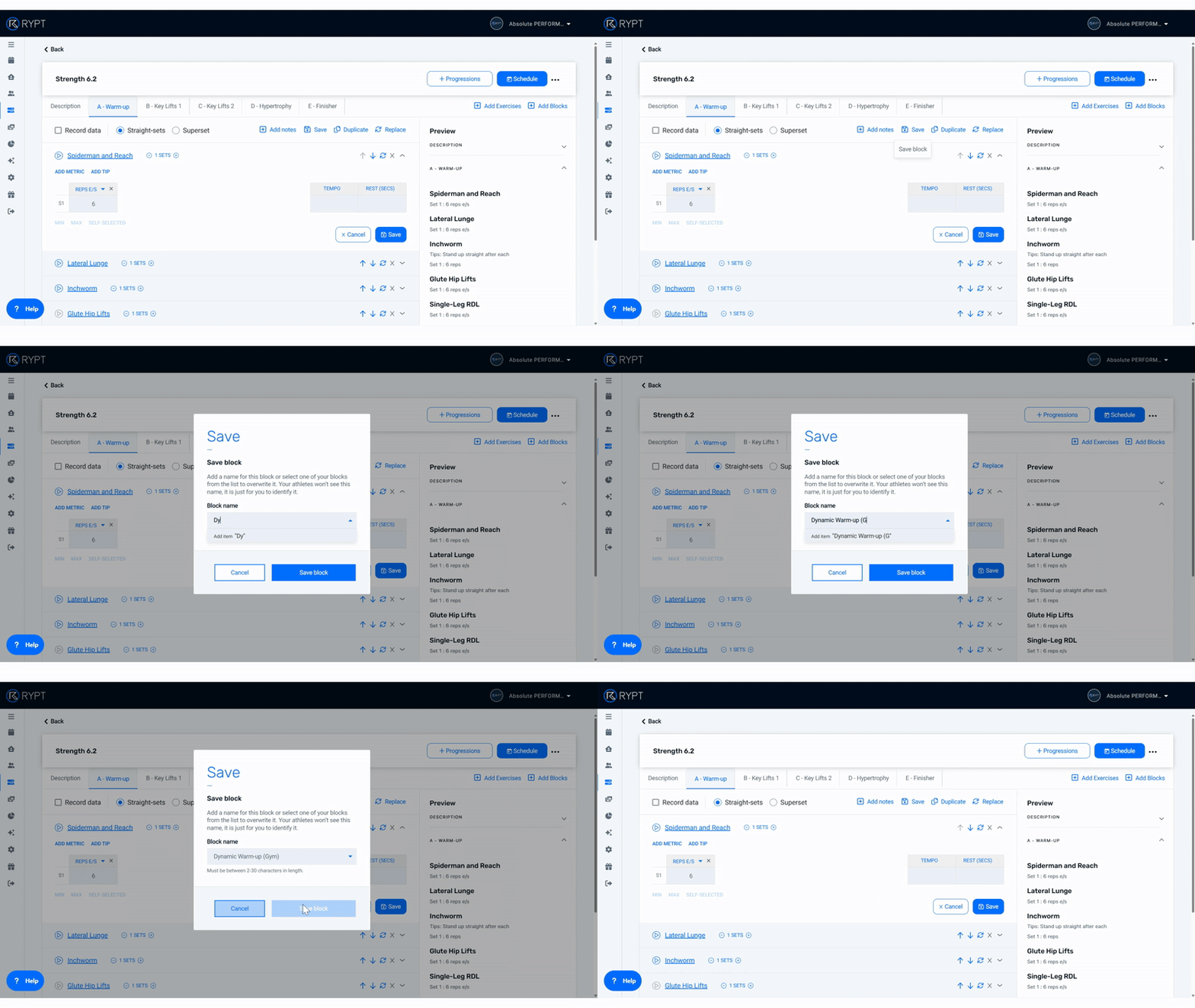
Once the Block is saved, it will added to your list of Blocks. You will be able to add it to a workout, or replace a block in an existing workout with it. It can also be edited in the Block Builder if you want to make any changes to it.
Creating a New Block
To create a new block, follow these steps:
- Click Programming > Blocks to open the Blocks list
- Give the Block a name (this is just for you to identify it and won't be seen by your athletes)
- Then you'll be taken to the Block Builder where you can add the exercises, metrics, and values you want to prescribe
The Block Builder is the same as the workout builder, the only difference is that you can only and one block in the Block Builder.
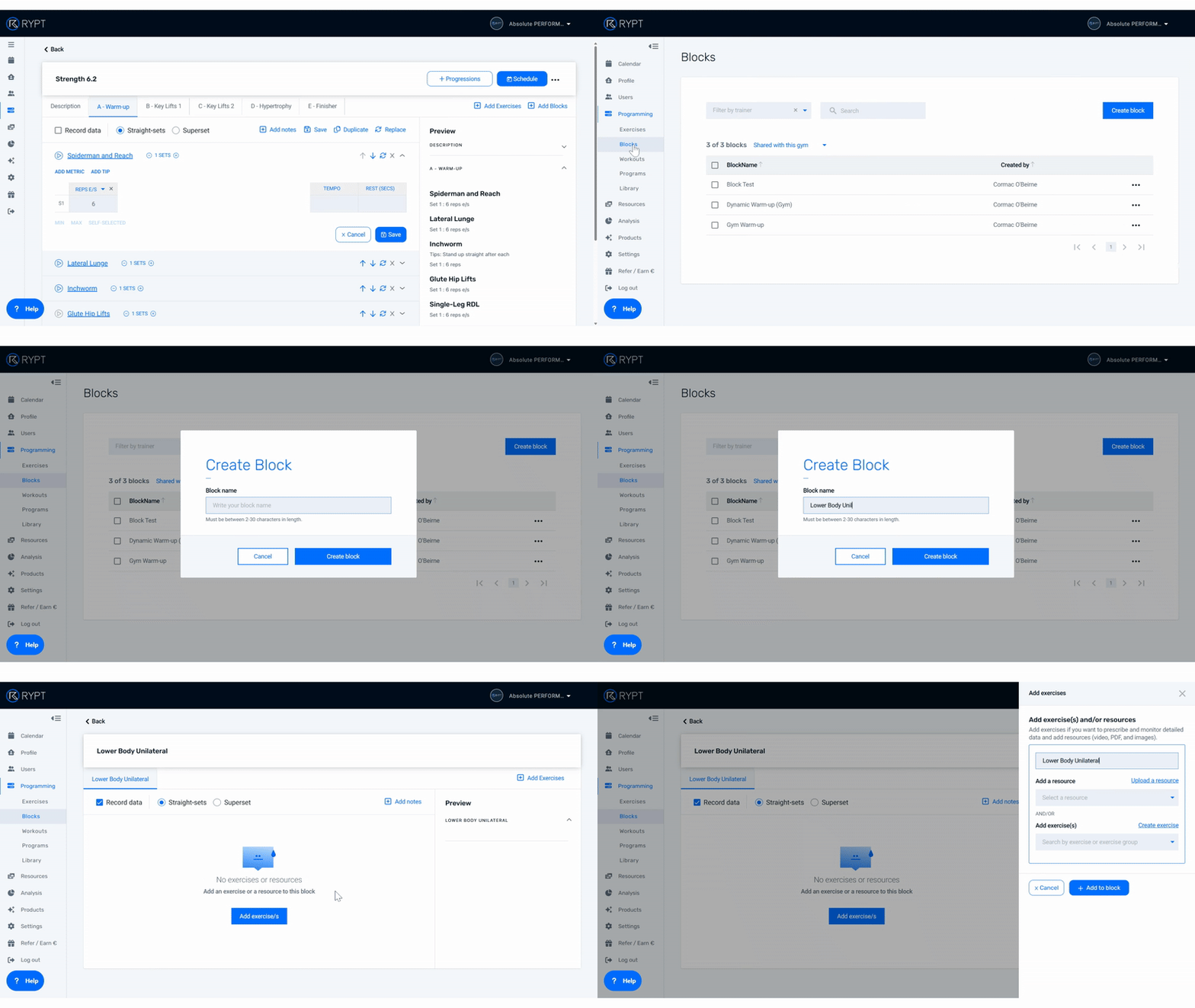
In the Block builder, click Add exercises – this opens a sidebar where you can add exercise(s) and/or a resource to your Block.
Adding Exercises
There is a field to Select exercise. Click on it to begin adding exercises from your Exercise database. Simply type the name of the exercise or exercise group to filter your database then click on the exercise or click enter to add it.
If the exercise you want isn’t in the database you can also create a new exercise from here by clicking Create exercise.
You can add multiple exercises to the block and they can be re-ordered and removed, if necessary, using the buttons or drag and drop. Once you’ve added all your exercises, click Add to block to finish.
Adding a Resource
There is also a field to Select resource. Click on it to add a video, PDF, or image from your Resource Library. Simply type the name of the resource you want to add to filter your database then click on the resource or click enter to add it.
If the video you want isn’t in your resource library yet, you can also upload it from here by clicking Upload resource.
One resource can be added to a block. Once you’ve selected your resource, click Add to block to finish.
Editing Exercises in Blocks
This video walks you through how to edit exercises that you have added to your Block, including re-ordering, replacing, and removing exercises.
Video length: 45 seconds
Adding Exercise Data
RYPT’s flexible Block builder allows you to create very detailed or simple blocks depending on the athlete that you’re working with. Now we’re going to look at how you add exercise data - sets, metrics, and values to those exercises so you can prescribe specific volume and intensity for your athletes to complete.
This video walks you through how to add sets, exercise metrics, and values to the exercises you’ve added to your Block so that you can prescribe specific volumes and loads for your athletes and define what you want them to track in the RYPT app.
Video length: 1 min 37 secs
Setting the Number of Sets
First, set the number of sets that you’d like your athlete to complete for that exercise. This is set to 3 sets by default but you can change this for each exercise by clicking on the number of sets to the right of the exercise name and selecting the number of sets you want to prescribe.
Adding Exercise Metrics
The next step is to add the exercise metrics that you’d like to prescribe for the exercise. RYPT has a wide variety of metrics so that you can create whatever type of workout it is you need.
To add metrics just click the Add metric button above the Sets table. You can set any combination of up to 3 metrics for each exercise to design and also add define Rest (secs), Tempo, and add a Tip to each exercise to give any targeted coaching cues or instructions.
The exercise’s default metrics will appear automatically but they can be changed by clicking on the metric and selecting the metric you wish to add from the list.
Default Metrics
You can set default metrics for each of the exercises in your database so that every time you add that exercise to the workout builder, the correct metrics are added automatically and you don’t have to add them each time. This saves you a lot of time when your programming and can be easily added by clicking on the exercise name to edit it. Learn how to add default metrics to your exercises here.
The list of metrics currently available in the workout builder are:
| METRIC | DESCRIPTION |
|---|---|
| Reps | Allows you to prescribe and record reps. |
| Reps e/s | Allows you to prescribe and record reps each side if programming a unilateral exercise. |
| Rep Range | Allows you to prescribe a rep range with High and Low values, and record a completed reps value. |
| kg | Allows you prescribe and record a load in kilograms. |
| %1RM | Allows you to prescribe a % of 1RM. The RYPT app will then calculate the kilogram load to be lifted based on each individual’s current 1RM for the exercise. They will then be asked to record a load in kilograms. |
| %1RM Range | Allows you to prescribe a range with High and Low values of % of 1RM. The RYPT app will then calculate the kilogram load for the High and Low values of the range based on each individual’s current 1RM for the exercise. They will then be asked to record a load in kilograms. |
| %BW | Allows you to prescribe a % of bodyweight and record a load in kilograms. |
| kg Range | Allows you to prescribe a kilogram range with High and Low values, and record a load in kilograms. |
| Force (N) | Allows you to prescribe and record a Force reading in Newtons. |
| m | Allows you to prescribe and record distance in metres if programming conditioning or cardio exercises like runs. |
| km | Allows you to prescribe distance in kilometres and record distance in metres if programming conditioning or cardio exercises like runs. |
| cm | Allows you to prescribe and record height in cm if programming or testing jump exercises like CMJ or Box Jump. |
| mm | Allows you to prescribe and record length in mm if programming or testing exercises like Sit and Reach. |
| Secs | Allows you to prescribe and record seconds for core exercises like the Plank, conditioning circuits, or MAS Runs. |
| Secs e/s | Allows you to prescribe and record seconds each side if programming a unilateral core exercise like the Side Plank. |
| Mins | Allows you to prescribe distance in minutes and record in seconds. |
| Average Velocity | Allows you to prescribe and record average velocity in metres/second if you are programming using velocity-based training. |
| Peak Velocity | Allows you to prescribe and record peak velocity in metres/second if you are programming using velocity-based training. |
| Average Velocity Range | Allows you to prescribe and record an average velocity range with High and Low values in metres/second if you are programming using velocity-based training. |
| Peak Velocity Range | Allows you to prescribe and record a peak velocity range with High and Low values in metres/second if you are programming using velocity-based training. |
| RPE | Allows you to prescribe a Rate of Perceived Exertion per set to set the intensity and help guide weight selection. |
| RIR | Allows you to prescribe Reps-in-Reserve per set to set the intensity and help guide weight selection. |
| %Max HR | Allows you to prescribe a % of Max Heart Rate. |
| %Max HR Range | Allows you to prescribe a range with High and Low values of % of Max Heart Rate. |
| Avg. HR | Allows you to prescribe a target average Heart Rate value. |
| Avg. HR Range | Allows you to prescribe a target average Heart Rate range. |
Prescribing Values
Once you’ve added your sets and exercise metrics, next it’s time to add the values that you want to prescribe to your clients/athletes. This is done just like adding values to an Excel table by clicking on the cell in the table and adding the value. You can prescribe a specific value by typing it into the cell, or if you don’t want to prescribe a specific value, depending on the metric you can also choose from the following options:
- Max / for example if you want to prescribe Max Reps for Chin-ups, or Max Height (cm) for CMJ
- Min / for example if you wanted to prescribe Min Time (secs) for a Run or Sprint
- Self-selected / for example if you wanted to prescribe Self-selected (kg), maybe also combining it with an RIR of 2 to guide weight selection
NOTE: If you want your athlete to record their data in the RYPT app you must include the metric and value for it in the workout.